 Folio
PDF to Word, step by step
Recover an editable copy and check what matters.
Convert your PDF into a DOCX to keep working in Word. The original is preserved; the copy may need adjustments, especially with tables, columns or scanned pages.
Before you start
Have the original PDF ready. Try selecting a sentence: if the entire page behaves like an image, check the OCR option.
Select your PDF
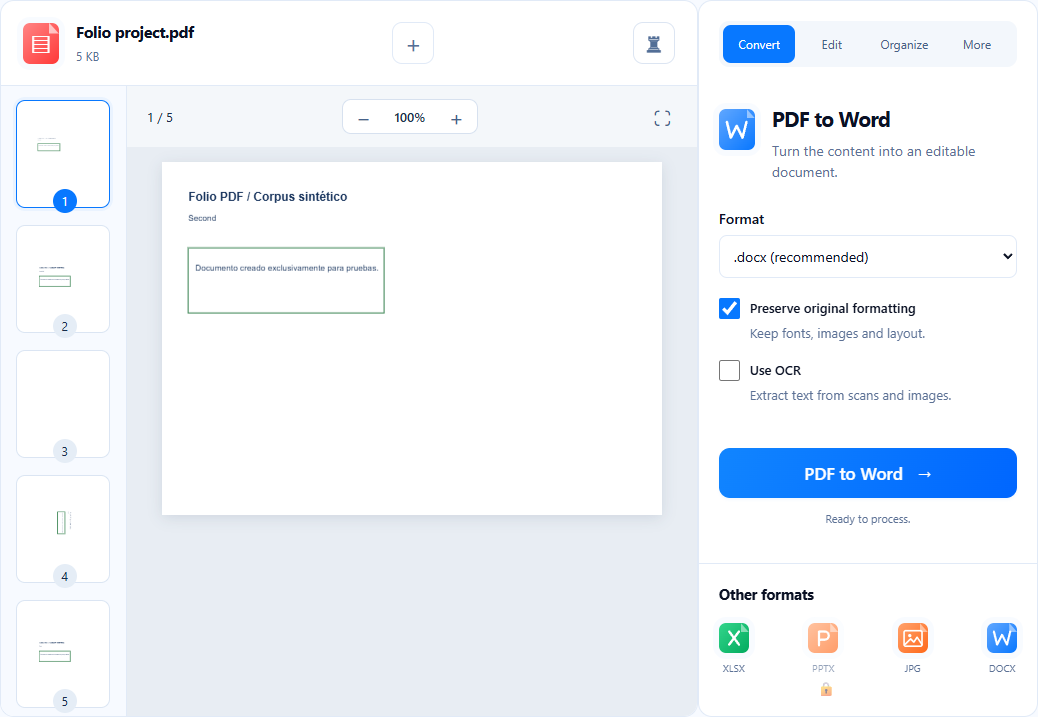
Open PDF to Word and select your file. Browse the preview to check that you chose the right document and that its pages are complete.
Review the options
The output is DOCX. Review Preserve original formatting and Use OCR for your document. If Folio detects a possible scan, use the prompt to choose how to process it.
Convert and download
Select the PDF to Word action and wait for the result. Download the copy and open it in Word. Compare names, figures, images and tables with the PDF before editing or sharing.
If something does not go as expected
If the layout changes, first review complex sections and page breaks. If text from an image is missing, check whether OCR is needed. A PDF’s digital signature stays in the original, not in the DOCX.
Search for a sentence in Word and compare a table with the original.
Now you know where to start.
Open toolYou may also find these useful.
View all guides ↗Reduce your PDF’s file size
Choose compression and review the quality of the result.
Bring your PDF tables into Excel
Extract the data and check rows, numbers and totals.
Convert PDF pages into images
Choose JPG or PNG for how you will use each page.