 Folio
Reduce your PDF’s file size
Choose compression and review the quality of the result.
Compression can reduce a PDF’s file size. Savings depend on its content: an image-based scan behaves differently from an already optimized text file.
Before you start
Keep the original and decide where you will use the copy: on screen, by email or in print.
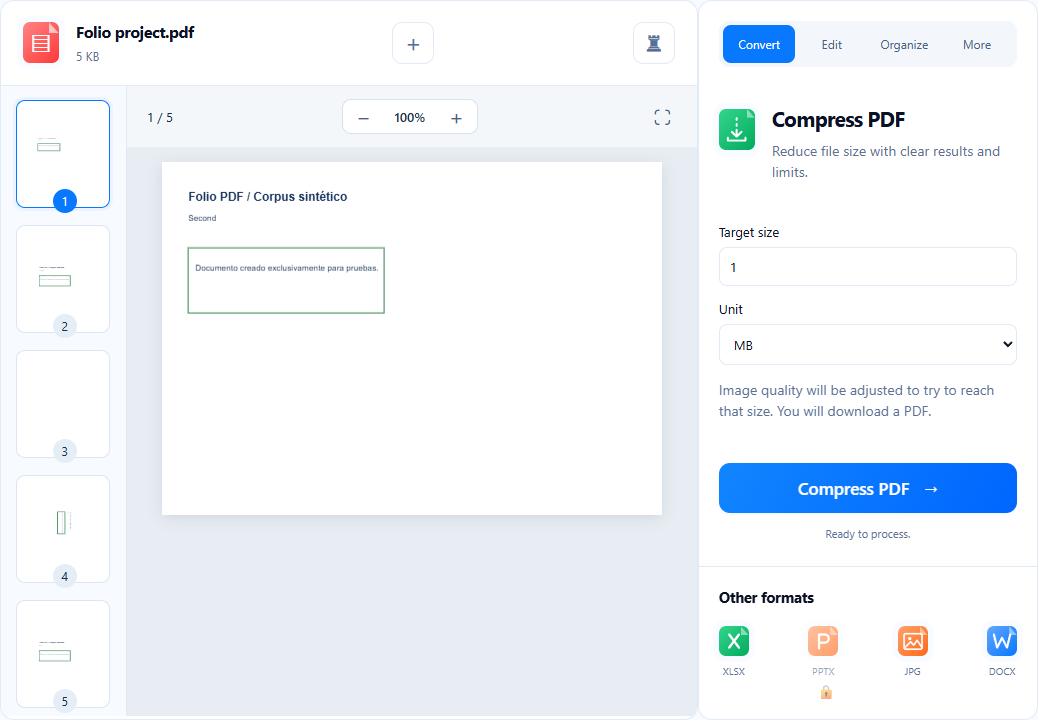
Open Compress PDF
Select the PDF and review its preview. Check that the content matches the file you want to send.
Adjust compression
Review the available controls and choose an appropriate level. Greater reduction may affect image details and scanned text.
Compare the copy
Run compression, download the result and compare size and appearance. Zoom into small lettering, stamps and charts before sharing.
If something does not go as expected
If the file barely shrinks, it may already be compressed. If the requested size is not reached, review the message and the copy’s actual size; a final size cannot be guaranteed for every PDF.
The copy is smaller and the necessary details remain readable.
Now you know where to start.
Open toolYou may also find these useful.
View all guides ↗PDF to Word, step by step
Recover an editable copy and check what matters.
Bring your PDF tables into Excel
Extract the data and check rows, numbers and totals.
Convert PDF pages into images
Choose JPG or PNG for how you will use each page.