 Folio
You can see your PDF, but cannot select its text
Understand when to use OCR and what to review afterwards.
A scan may contain an image of the page rather than text. OCR recognizes letters in that image to recover usable text. Recognition can make mistakes.
Before you start
Try searching for a visible word. Check the page’s orientation, focus and contrast.
Prepare a readable image
Correct rotated pages and avoid photos with glare or cropped text. Recovering what is not visible in the original is not guaranteed.
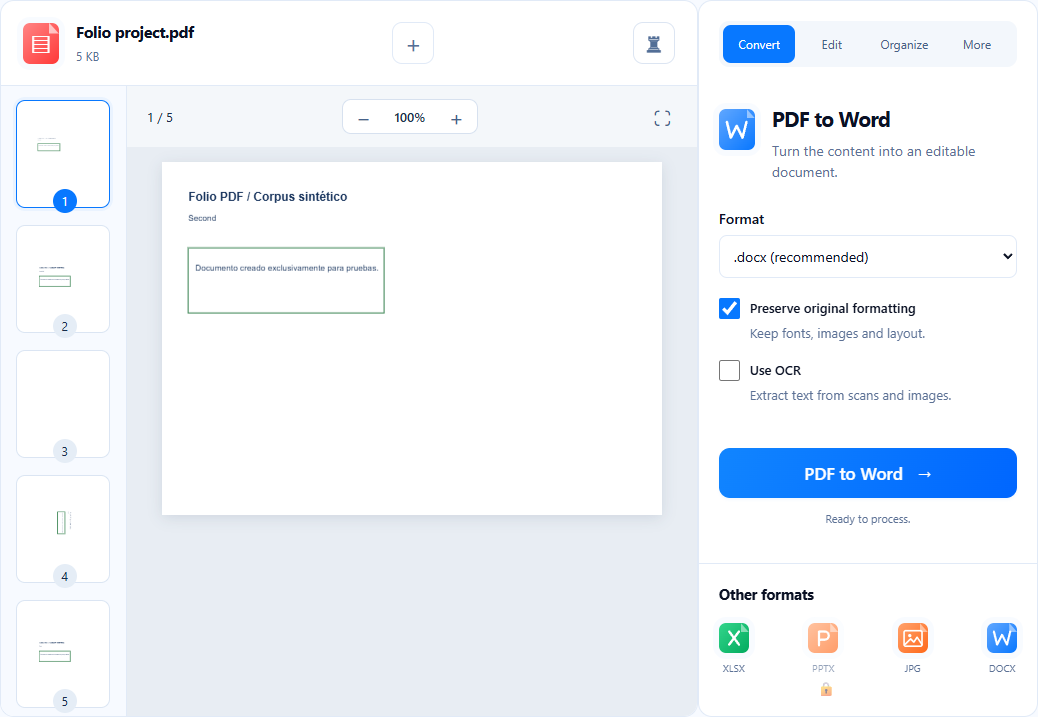
Enable OCR for your Word copy
For an editable DOCX, open PDF to Word, select the file and review Use OCR. The standalone OCR tool has its own availability; do not assume it is active because this option is.
Compare the result
Run the tool and compare recovered text with the original. Review names, amounts, dates and similar characters such as O and 0.
If something does not go as expected
If words are missing, first review scan quality. Recovering text does not automatically certify the accessibility of the entire PDF.
You can find the text you need and have reviewed figures and names.
Now you know where to start.
Open toolYou may also find these useful.
View all guides ↗Scan with your phone and continue wherever you want
Prepare a PDF on your phone and, if you wish, send it to your computer.
PDF to Word, step by step
Recover an editable copy and check what matters.
Reduce your PDF’s file size
Choose compression and review the quality of the result.